Google Workspace SSO Setup and Configuration Guide
Most Google Workspace SSO guides give the wrong finish line. They treat a successful redirect to an identity provider as proof that the environment is ready, but authentication and authorization are separate operating problems. A user can sign in through SAML or OIDC and still be unable to run a Drive workflow, access Calendar data, or call the Admin SDK because OAuth clients, scopes, tokens, and delegation were never configured.
A reliable Google Workspace SSO deployment therefore needs two plans. The first governs how people authenticate. The second governs how applications and automation obtain permission to act. The distinction becomes harder to manage when several identity providers serve one Workspace tenant, because routing, certificates, MFA evidence, and ownership can vary by organizational unit.
Table of Contents
- Why SSO Implementation Does Not Mean Automation Ready
- Choosing Between SAML and OIDC Protocols
- Configuring Your First SSO Profile in Admin Console
- Testing and Validating the Integration
- Common Configuration Errors and How to Fix Them
- Security Governance for Multi Provider Setups
Why SSO Implementation Does Not Mean Automation Ready
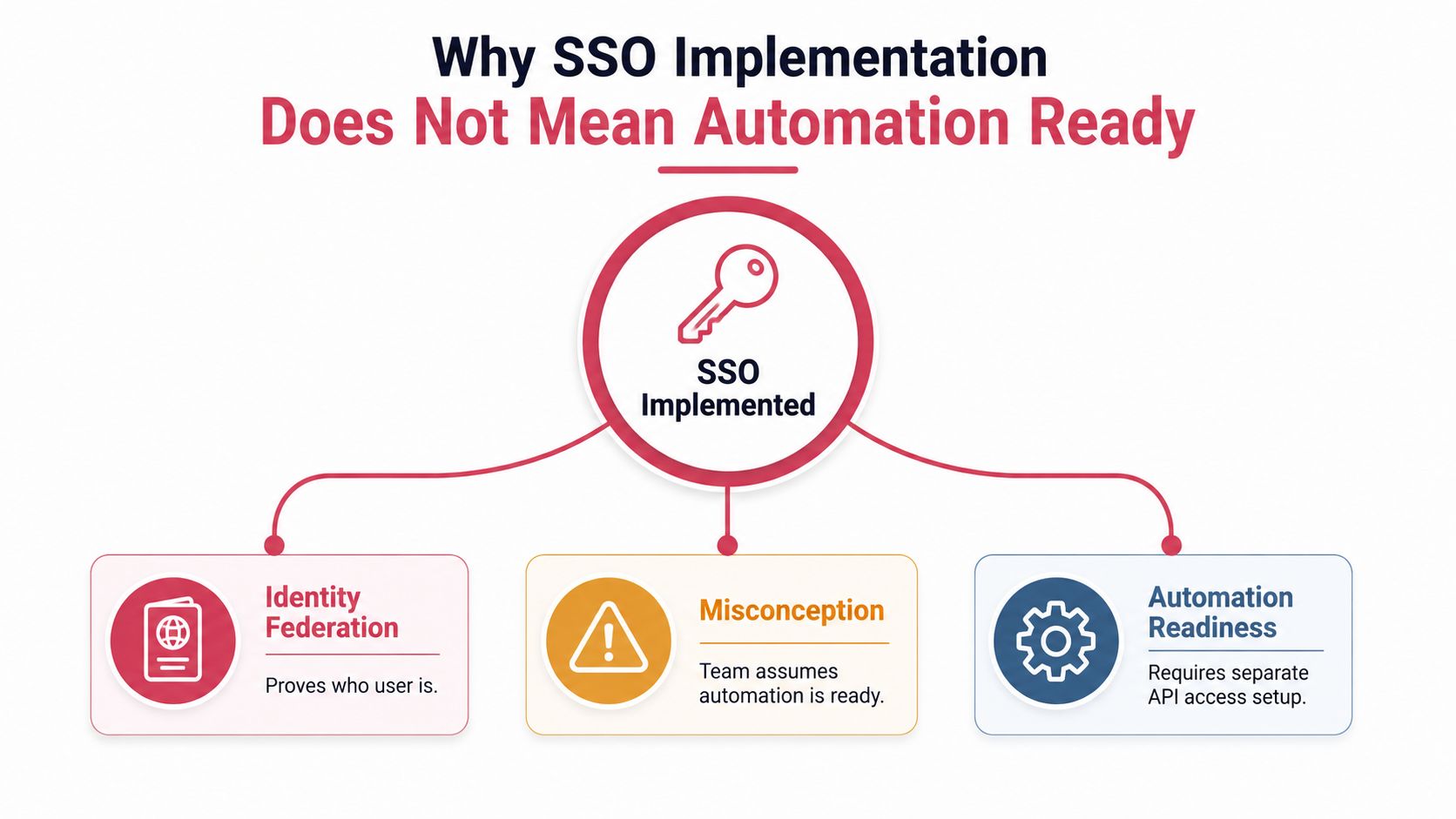
Google Workspace SSO proves identity. It doesn't automatically authorize API activity. Google's SAML SSO FAQ states that SAML v2.0 is supported and that SAML applies to Google Workspace web applications, while API access still requires application specific authorization. The Google Workspace SAML SSO FAQ is especially important for teams that assume a completed login flow covers integrations.
A SAML assertion tells Google who the user is and whether the identity provider authenticated that user. It doesn't create an OAuth access token with permission to read a calendar, modify a Drive file, or administer users. OIDC can provide an identity token and, depending on the application design, tokens for other services, but those tokens and scopes still have to be requested, approved, stored, refreshed, and governed separately.
The boundary operators need to document
A useful architecture document separates these layers:
- Identity federation: SAML or OIDC establishes the user identity and sends the user to the correct sign in experience.
- Workspace session: Google creates the session that allows access to the permitted Workspace web applications.
- Application authorization: OAuth clients request scopes for a particular application and user consent or administrator approval determines what the application can do.
- Service automation: Service accounts, domain wide delegation, delegated credentials, and scope governance support non interactive workflows where the design requires them.
The last two layers don't appear automatically because SSO works. A sales operations team might successfully authenticate to a custom application and still see API errors when the application requests Drive or Calendar data. The right response isn't to keep changing the SAML certificate. It's to inspect the OAuth client, redirect flow, requested scopes, consent configuration, token audience, and delegation model.
Practical rule: Treat “SSO login successful” and “API authorization approved” as separate acceptance criteria.
Google's product history reinforces that SSO is an operational identity control, not an automation permission. Google added end user SAML event auditing to the Admin console on June 27, 2016, allowing administrators to track successful and failed SAML logins under Reports, Audit, and SAML in its Workspace update. That visibility helps operators troubleshoot authentication, but it doesn't confirm that an API integration has valid OAuth scopes.
Before rollout, every automation owner should document the API, authorization method, required scopes, token owner, rotation process, and revocation path. If those fields are blank, the environment isn't automation ready, regardless of how clean the SSO redirect looks.
Choosing Between SAML and OIDC Protocols
SAML remains the practical choice for many established enterprise applications. OIDC generally fits newer applications that need a lighter identity flow and closer coordination between login and token handling. Neither protocol removes the need for careful authorization design.
| Criteria | SAML | OIDC |
|---|---|---|
| Best fit | Traditional enterprise and legacy web applications | Modern applications, mobile clients, and browser based applications |
| Message format | XML assertions | JSON web tokens |
| Common operational dependency | Signing certificates and assertion validation | Client credentials, redirect URIs, and token configuration |
| Attribute handling | Rich assertion attributes and mappings | Claims supplied in identity tokens |
| API readiness | Login does not itself grant Google API access | Token use and API scopes still require explicit design |
| Main failure pattern | Incorrect endpoints, certificates, audience, or assertion structure | Incorrect redirect URI, client settings, claims, or scopes |
SAML wins when the application already expects an enterprise federation contract, needs detailed attribute statements, or has a mature service provider integration. It also works well when the identity provider owns the main authentication experience and Google Workspace acts as the service provider. Google describes that relationship in its overview of Workspace SSO, which covers SAML and OIDC support and the redirect to an external identity provider.
OIDC is usually easier to work with for a new application because developers can handle JSON claims and standard token endpoints without parsing XML assertions. It can also fit applications that need refresh tokens or a direct post login authorization sequence. That does not mean OIDC is automatically safer or simpler in production. Client secrets need ownership, redirect URIs must be exact, and token lifetimes and refresh behavior need testing across browsers and devices.
The decision should follow the application's existing contract rather than protocol fashion. A legacy service provider with stable SAML metadata is often lower risk than replacing it. A new application with a mobile client and a separate API may benefit from OIDC, but its API scopes remain an independent control.
For a concrete SAML deployment outside the core Workspace web experience, the guide on how to configure SAML for Meraki guest Wi Fi offers useful implementation context. The same discipline applies, identify the issuer, endpoints, claims, certificate owner, and rollback path before enabling users.
Configuring Your First SSO Profile in Admin Console
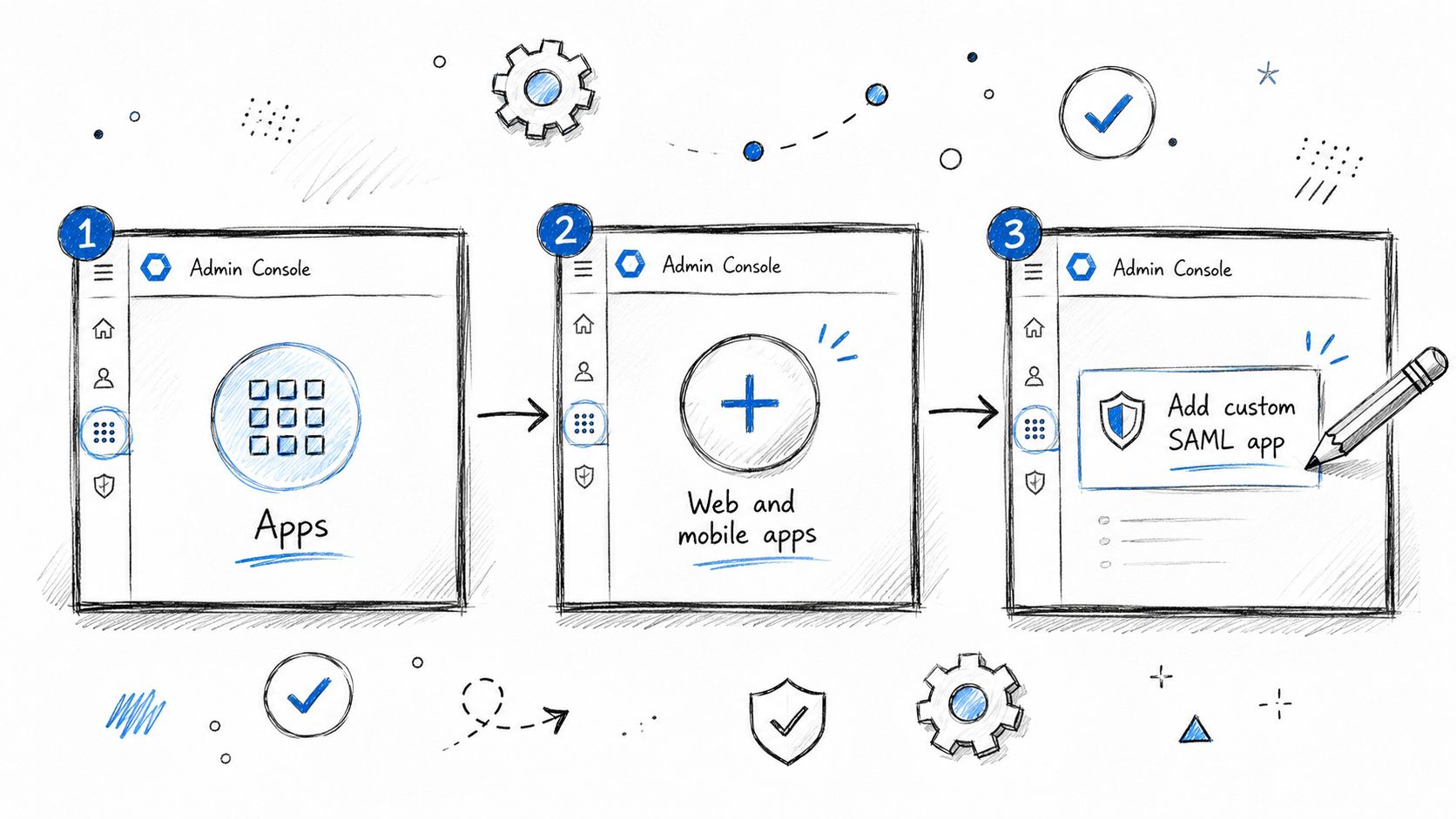
Start with a narrow assignment and a complete record of the identity provider values. Google's current setup documentation places third party SSO configuration in Security, Authentication, then SSO with third party IdP, while custom applications are added through Apps, Web and mobile apps, Add app. The exact screen depends on whether the organization is configuring Workspace federation or a custom SAML or OIDC application.
Gather the integration contract first
For a SAML application, collect the service provider's Entity ID, ACS URL, and required Name ID format before opening the console. Confirm whether the service provider expects an email address, a persistent identifier, or another value. In Workspace federation, also prepare the organization's sign in page, sign out page, password change page, and verification certificate, as shown in Google's SSO setup documentation.
For OIDC, create or obtain the client configuration, record every allowed redirect URI, and decide which scopes the application needs. Don't add broad scopes because they might be useful later. Scope decisions are authorization decisions, so the application owner and security owner should approve them.
Attribute mapping deserves the same attention as endpoints. Map the identity provider's stable user identifier to the Workspace field expected by the service provider, then verify casing, domain suffixes, and name format. A mismatch can produce a clean looking redirect followed by an account not found error.
Build the profile and stage the rollout
Create the profile, enter the endpoints, upload the verification certificate, and save the configuration only after comparing each value with the identity provider metadata. New Google SAML SSO profiles can use two verification certificates, which supports controlled certificate rotation and avoids making an expiration date an emergency event. Google also supports up to 100 identity provider profiles in the multi provider architecture described in its multi IdP SSO announcement.
Assign the profile to a test organizational unit or group. Keep a super administrator recovery path available because Google's troubleshooting guidance states that super administrators bypass SSO and aren't redirected to the SSO page. Test with a normal user account as well, since an administrator account can give a false impression about the end user flow.
Use Google's custom application test login before enabling access broadly. For application teams that need to connect mailbox data to downstream workflows, document the separate authorization design alongside the SSO profile. A useful internal reference for Gmail related automation is the Gmail MCP guide, but the same principle applies to any integration, SSO configuration doesn't replace OAuth consent and scope approval.
Record the certificate issuer, fingerprint, expiration date, replacement owner, and change window. Certificate mismatch and stale legacy endpoints are common causes of failure, so rotation should be tested before the current certificate becomes urgent.
Testing and Validating the Integration
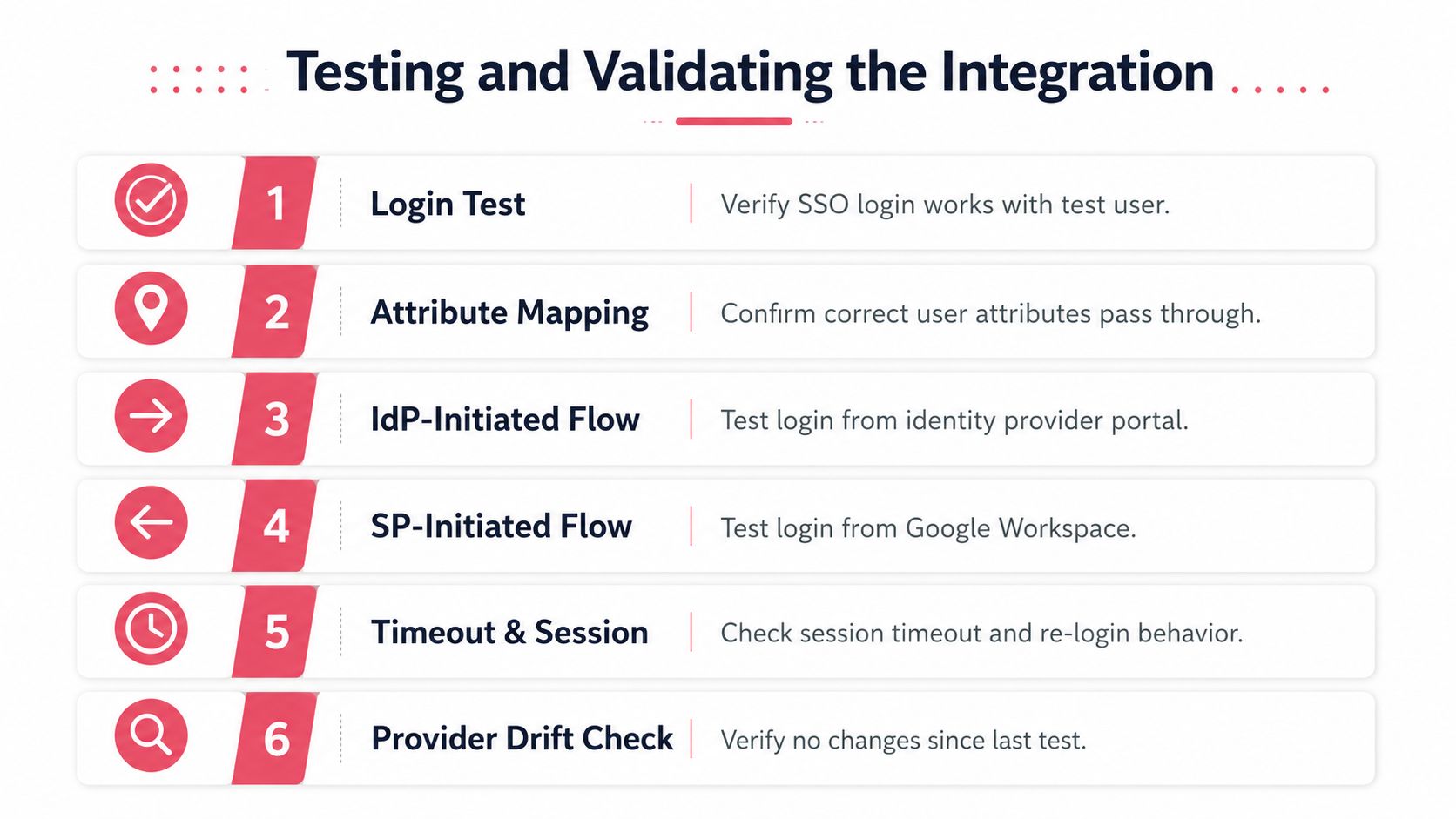
A login that works once is not validation. A proper test proves that the right user reaches the right provider, receives the right attributes, maintains an acceptable session, and can recover when a dependency changes.
Begin with test accounts in a dedicated organizational unit. Don't test by changing the default policy for active users. Assign the SSO profile only to the test population, and keep a documented rollback that restores the prior authentication path without depending on the failing provider.
Validate both directions of the sign in flow
Run an IdP initiated test from the identity provider portal. Then run an SP initiated test from Google Workspace or the application. The two paths can exercise different endpoint settings, so success in one direction doesn't prove that the other is correct.
Inspect the SAML response with browser developer tools or an approved SAML tracing extension. Check the issuer, audience, destination, subject format, timestamps, signature status, and mapped attributes. For OIDC, inspect the ID token claims and confirm that the application receives the expected identity fields. Never copy live tokens into tickets or chat channels.
Test session behavior rather than stopping after the first page loads. Force an idle period, sign out from the provider, open a second device session, and verify that the application requests authentication when its policy requires it. Also test from an unmanaged network and during a controlled provider outage, because redirect loops and unclear error pages often appear only outside the normal office path.
Prove the authorization layer separately
For an application that calls Google APIs, test the access token independently from the SSO redirect. Confirm the requested scopes, consent state, token refresh process, and behavior after a token is revoked. A user can pass every SAML assertion check and still fail this test because the OAuth client wasn't approved or the delegated scope is missing.
A calendar automation owner should test read, create, update, and failure behavior using only the approved permissions. The Google Calendar MCP reference can help teams frame those checks, but the acceptance decision belongs to the Workspace administrator and application owner.
Google's troubleshooting guidance identifies incorrect legacy endpoints, invalid certificates, encrypted SAML responses, and malformed assertions as causes of sign in failure. Its cited guidance says Google accepts unencrypted SAML Responses in the tested flow, so response encryption should never be assumed to work without validation. Keep the recovery account outside the affected assignment and write down the exact rollback sequence before expanding the profile.
Common Configuration Errors and How to Fix Them
Most SSO failures come from a small set of mismatches. The error message may appear in the browser, the identity provider, or the Google Admin audit logs, so operators should correlate the user, timestamp, provider response, and assigned profile before changing anything.
| Error Type | Root Cause | Resolution |
|---|---|---|
| Redirect failure | Legacy profile, hard coded endpoint, or incorrect domain setting | Review the assigned SSO profile, replace stale endpoints, and test with a limited organizational unit |
| Certificate failure | Wrong certificate, expired certificate, or incomplete rotation | Compare the uploaded certificate with the provider metadata, then test the replacement before broad assignment |
| Assertion rejection | Malformed assertion, incorrect audience, unsupported encryption, or invalid destination | Inspect the SAML response, correct the service provider values, and confirm the response is unencrypted where required |
| Account not found | Name ID or attribute doesn't match the Workspace identity | Map the stable email identifier correctly and test a user whose domain and account values are known |
| Mobile redirect issue | iOS login URL uses a disallowed prefix and triggers Safari redirects | Use the permitted login URL format and validate the iOS flow separately |
| OIDC application error | Redirect URI, client configuration, claim, or scope doesn't match the application | Compare the registered URI and requested scopes character by character, then repeat the token test |
Where to investigate first
Start in Reports, Audit and investigation, Admin log events for changes to SSO settings and in the relevant user or authentication logs for sign in results. The precise label can vary by Admin console view, but the objective is consistent, identify the profile applied to the user and the provider response generated for that attempt.
For SAML, inspect the assertion before editing several fields at once. A wrong audience restriction, missing destination, invalid signature, or unexpected encryption setting can all produce a generic rejection. Google's troubleshooting material also calls out sign in, sign out, and password change URLs, valid certificates, legacy profiles, and incorrect domain settings as areas to verify. Its single sign on troubleshooting guidance also notes that iOS behavior can fail when a login URL uses a disallowed prefix.
Clock problems require a different fix. Synchronize the identity provider systems with a reliable time source and retest the assertion timestamps. Don't compensate by weakening validation or repeatedly retrying the same request.
Operational rule: Change one variable, reproduce the failure, and preserve the original response. Bulk edits make root cause analysis slower and rollback riskier.
After correcting a field, retest with the same user and flow that failed. Then test the opposite flow and a second user in the same assignment. Finally, review the admin audit event to confirm that the new profile and certificate are the ones being used, not a legacy configuration still attached to the organizational unit.
Security Governance for Multi Provider Setups
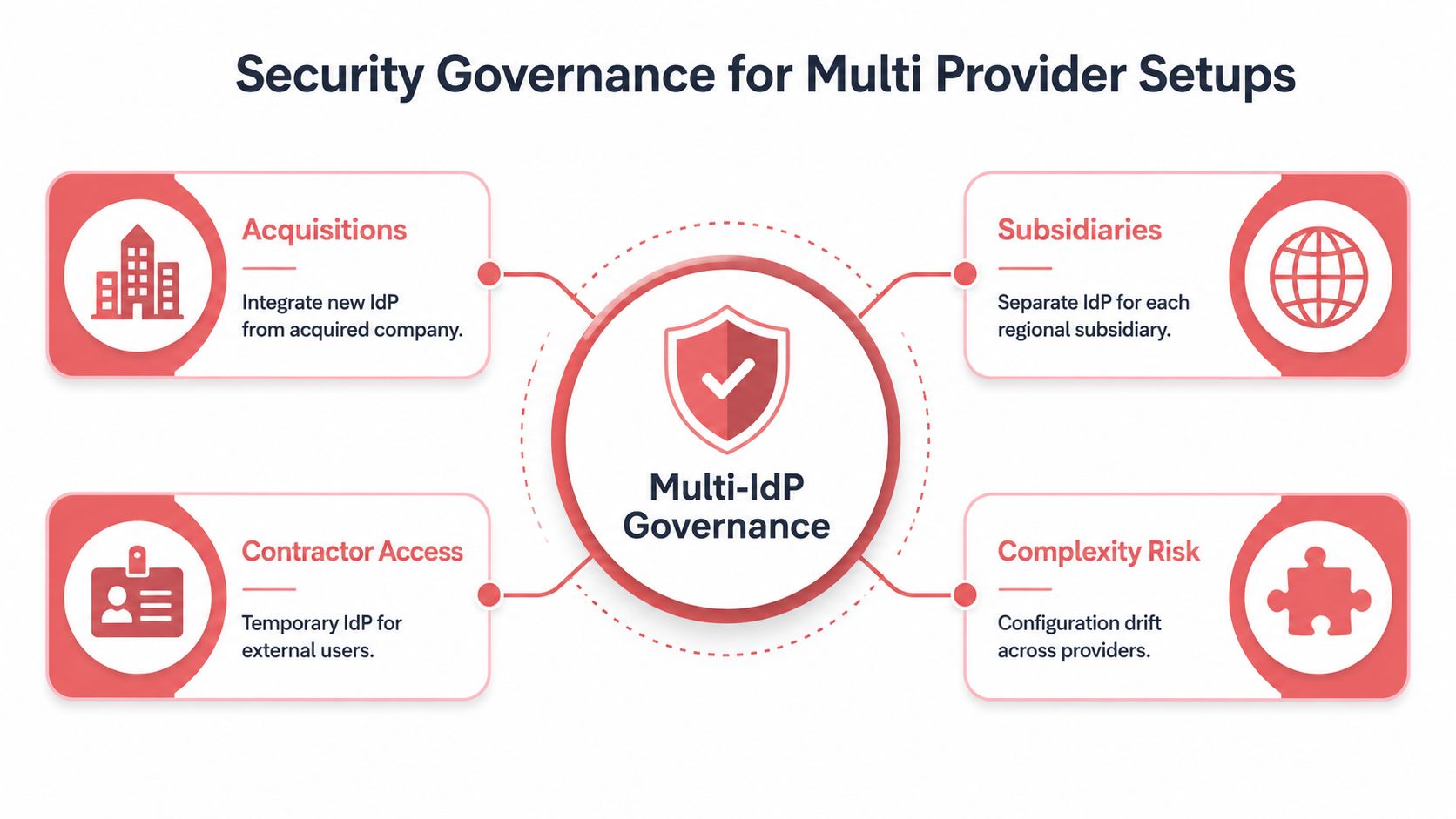
Multiple identity providers can solve real business problems, but they turn SSO into a governance system. Google's SAML Partial SSO became generally available on November 19, 2021, after a beta launch on July 29, 2021, and multi IdP SSO became generally available on August 9, 2022, according to Google's Workspace update. Partial SSO assigns different profiles to organizational units or groups, while multi IdP support allows organizational accounts to authenticate through multiple third party providers.
That flexibility helps during acquisitions, regional operations, and phased migrations. It also means a user's authentication posture can change when an administrator moves the user between organizational units. A misplaced assignment can route the user to a provider with different session controls, recovery procedures, or MFA behavior.
Treat MFA evidence as a provider responsibility
When users authenticate through an external identity provider, Google may not have direct visibility into how MFA was performed upstream. That creates a compliance question, not just a configuration question. Each provider owner should document the MFA policy, the evidence available in logs, the session lifetime, recovery process, and access review cadence.
Certificate ownership also needs a clear boundary. Every provider should have a named technical owner, an inventory of active profiles, a tested replacement certificate, and an alerting process for expiration. A failure in one provider shouldn't interrupt every user, but administrators still need to know which groups depend on it.
Teams consolidating identity sources should audit Active Directory with UTMStack as part of the broader access review, especially when legacy directories remain connected to acquired or subsidiary environments. The review should map users, groups, privileged roles, service accounts, and inactive assignments to the provider that controls each identity.
Reduce provider count deliberately
A sound operating model uses one primary provider where possible and retains additional providers only for a documented business reason. For each exception, record the covered population, owner, authentication standard, certificate schedule, incident contact, and exit plan.
Administrators should review OU assignments after reorganizations, acquisitions, and contractor offboarding. They should also compare identity policy with adjacent mail and application workflows, including the distinction covered in SMTP versus IMAP guidance, because authentication changes can expose assumptions in older integrations.
Governance test: If nobody can explain why a user belongs to a specific SSO profile, that assignment is already a control weakness.
The strongest design keeps identity routing, MFA responsibility, API authorization, and audit ownership explicit. Google Workspace SSO can provide a dependable sign in foundation, but only disciplined ownership prevents a flexible multi provider environment from becoming a collection of undocumented exceptions.
GTM teams that need Workspace data in operational workflows can use Yalc to connect approved tools through a unified GTM API while keeping permissions, human approvals, and execution logs visible. Visit Yalc to evaluate whether its AI native playbooks and MCP based workflows fit the team's OAuth governance and automation requirements.