How to Call from PC: 5 Reliable Methods Explained

A sales rep steps away from the desk for coffee. The phone is on silent, a prospect calls, and the missed call sits unnoticed while the deal cools off. The practical fix is to make the PC part of the calling workflow, not just the place where the CRM is open.
The right method depends on the job. A personal call needs speed. Recurring client conversations need a dependable meeting tool. A sales team needs business numbers, permissions, and records. A power user may need multiple SIP accounts. Someone who wants to keep using a mobile number may need a PC to phone bridge.
Table of Contents
- Five Reliable Ways to Call From a PC in 2026
- Setting Up Web Calling on Google Meet and Zoom
- Making Business Calls With Microsoft Teams on PC
- Configuring a Softphone With SIP for Power Users
- Browser Versus Desktop Client Versus Phone Link
- Troubleshooting Call Quality and Permissions
Five Reliable Ways to Call From a PC in 2026
PC calling has moved far beyond a technical experiment. Skype launched in 2003 as free internet telephony, reported more than 100 million calls in its first two days, passed 1 billion calls by 2004, and reached 23 million registered users in its first 18 months. By April 2005, it had reached 100 million downloads, while SkypeOut, introduced in July 2004, let users call landlines and mobile phones from a PC. The Skype timeline published by The Guardian captures how quickly software turned a computer into a practical calling device.

The five approaches below cover most real operating situations:
- Google Meet suits a quick personal call or a one off conversation that already belongs in Google Workspace. It runs in a browser and avoids a separate phone system.
- Zoom fits recurring client calls when the team already uses Zoom and values recordings, transcripts, and a familiar meeting history.
- Microsoft Teams is the business telephony option for organizations already working inside Microsoft 365. It can connect internal collaboration with external calling, but licensing matters.
- A SIP softphone gives a power user direct control over accounts, numbers, audio devices, and call routing. It takes more setup but avoids forcing every workflow into a meeting platform.
- Phone Link connects a PC to an Android phone so calls use the actual mobile device and number. It's useful when the user wants laptop convenience without replacing the phone service.
For a broader overview of computer calling options, the SnapDial computer calling guide is a useful reference. Teams that need to connect calling with prospect research can also review signal to call workflows, particularly when a call should follow a buying signal rather than a random task list.
The market still treats PC calling as a meaningful channel. One market summary reports that desktops and laptops accounted for 30% of VoIP calls, with annual growth of 8.3% from 2020 to 2024, while mobile devices held 55% during that period. Another source places computer to computer VoIP at 35.4% of the market in 2024, showing that the PC remains relevant for business and cross border communication. (VoIP market summary)
Setting Up Web Calling on Google Meet and Zoom
Browser calling is the fastest route when the caller doesn't need a dedicated phone number or a full telephony system. The computer needs internet access, a headset or working microphone and speaker, and a stable connection. A practical light voice recommendation is 100 kb for transmission and 100 kb for reception per user, according to Ringover's computer calling guidance.
Google Meet setup
Start with Google Calendar if the call is scheduled. Create an event, add the guest, select Google Meet, and choose the meeting duration. For example, a team member can schedule a 60 minute call with a client, then join from the calendar event when it's time.
For an immediate call, open Google Meet in Chrome or Edge and start a meeting. The first failed test is usually a permission issue, not a network issue:
- Open the meeting page and select Allow when the browser asks to use the microphone.
- If the prompt was dismissed, open the site permissions from the browser address bar and enable microphone access.
- Check the operating system privacy settings. Chrome or Edge must have permission to access the microphone at the OS level.
- In Meet settings, select the intended microphone and speaker before joining.
- Run a short test with another person, rather than assuming the default device is correct.
Practical rule: Browser permission and operating system permission are separate controls. Both must allow microphone access.
Google Meet works well for personal calls and one off meetings already organized in Workspace. It's less suitable when a sales team needs a durable phone number, detailed call controls, or a repeatable outbound workflow.
Zoom setup
Zoom follows the same basic pattern, but the desktop client is often more useful for recurring client work. Install the client, sign in, test the microphone and speaker, and join or start a meeting from the schedule or contact workflow.
Zoom's client experience can provide dial by name functionality and stronger call history than a basic browser session. That distinction matters when a representative makes repeated calls and needs to find a prior interaction without searching through meeting invitations.
Choose Google Meet for speed and personal use. Choose Zoom when the team already runs client conversations there and needs recordings, transcripts, and repeatable history. Neither is a complete replacement for business telephony when external numbers, shared lines, or call permissions are central requirements.
Making Business Calls With Microsoft Teams on PC
Microsoft Teams is the sensible PC calling choice when the organization already uses Microsoft 365 and wants collaboration and business telephony in one desktop application. The desktop client still has technical requirements that generic setup guides often skip.
Microsoft lists the following Teams requirements for Windows 10:
| Requirement | Minimum |
|---|---|
| Processor | 1.1 GHz or faster, with two cores |
| Memory | 4 GB RAM |
| Free storage | 3 GB |
| Display | 1024 x 768 |
| Graphics | DirectX 9 or later with WDDM 2.0 or higher |
| Camera | USB 2.0 video camera support, or a standard laptop camera |
| Audio | Laptop or external microphone and speakers |
These requirements come from Microsoft's Teams system requirements. A current business laptop will often meet them, but a managed or older machine can fail at the camera, audio, or graphics layer before the calling configuration is even tested.
Configure the calling feature
Install the Teams desktop client, sign in with the organization's Microsoft 365 account, and open the Calls area. If Calls isn't visible, the problem may be licensing or administrator configuration rather than a missing button.
Teams calling isn't included by default on every Microsoft 365 plan. Users on Microsoft 365 E1, E3, Business Basic, Standard, and Premium need an additional Teams Phone license, while Microsoft 365 E5 includes Teams Phone. (Teams calling licensing explanation)
Consider a five person sales team on Business Standard. The team can't open Teams and assume external calling is ready. An administrator must account for the additional Teams Phone license, configure the business calling service, assign numbers or calling permissions, and then test inbound and outbound calls for each user.

Teams is a strong fit when the organization wants central administration, internal presence, and a common work environment. It's less attractive when a small operation wants multiple providers, direct SIP control, or a setup that doesn't depend on the Microsoft licensing stack. For teams that want better preparation before a conversation, AI call preparation workflows can sit alongside the calling process, but they don't replace the telephony configuration itself.
Configuring a Softphone With SIP for Power Users
A softphone is a desktop application that makes calls through a VoIP account instead of a physical desk phone. SIP, or Session Initiation Protocol, handles the call signaling. A SIP address may look like user@provider.com, while the provider separately supplies the server, username, and password needed for registration.
This method suits operators who need control over numbers and audio devices. It isn't the fastest path for a casual call, but it can be the cleanest option for a fractional GTM engineer who manages two numbers, one for client work and one for personal calls, through the same desktop client and headset.
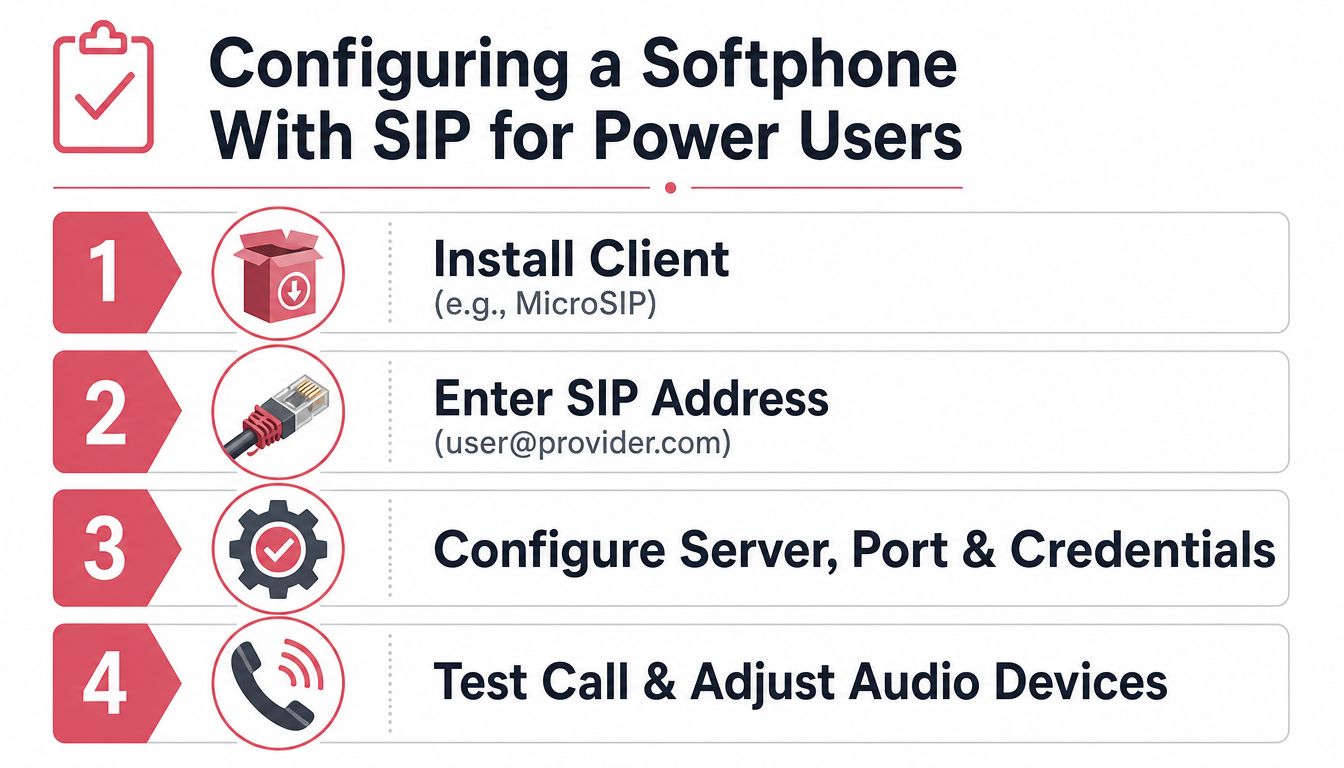
The setup flow
Install a desktop client such as MicroSIP or Linphone. Then enter the account details supplied by the VoIP provider:
- Paste the SIP server or domain into the client.
- Enter the SIP username and password.
- Add any provider supplied port or transport settings.
- Save the account and wait for the client to show a registered status.
- Place a test call before using the account with a customer.
Registration is the key checkpoint. If the account doesn't register, placing repeated test calls won't help. Check the server, username, password, and provider instructions first.
Tune the audio before the call
Softphones expose input and output device choices that browser apps can hide behind system defaults. Select the headset microphone explicitly, choose the headset as the output device, and confirm that the client isn't using the laptop microphone while audio plays through the speakers.
A useful resource on the model is VoIP softphone cloud calling, which explains how a software phone fits into a VoIP setup. The main operational advantage is repeatability. A user can keep the same headset, switch between accounts, and control which number appears without changing physical hardware.
The trade off is responsibility. SIP credentials, provider settings, account registration, and device selection all need to be managed deliberately. Network quality still determines whether the call sounds professional, so a successful registration doesn't prove that the connection can support a busy calling workflow.
Browser Versus Desktop Client Versus Phone Link
The right answer depends on what the caller is trying to preserve. A browser preserves speed. A desktop client preserves control and repeatability. Phone Link preserves the existing mobile number and carrier relationship.
| Path | Best for | Setup time | Key limitation |
|---|---|---|---|
| Browser calling | Personal calls and one off meetings | Short | Limited call history and device control |
| Desktop client | Recurring sales, support, and business calls | Moderate | Requires application setup and, in some cases, licensing |
| Phone Link | Calls using the existing Android phone number | Short to moderate | Requires Bluetooth on both devices |
Choose the browser for immediacy
Google Meet and browser based Zoom are appropriate when the caller needs to open a page, allow microphone access, and start talking. They work especially well for personal calls and scheduled meetings that already live in a calendar.
The limitation appears after the call. Browser sessions generally provide less device level control and less durable call history than a dedicated client. That may be acceptable for a one off conversation, but it becomes frustrating for recurring outreach.
Choose a desktop client for repeatable work
Teams, Zoom's desktop client, and SIP softphones are better when representatives make many calls and need consistent audio, call logs, permissions, or recordings. A desktop client also gives operations leaders a clearer place to standardize device settings and user access.
For GTM teams coordinating research, outreach, and follow up, AI agents for increasing revenue represent a separate workflow layer. They can support preparation and execution around calls, but the calling application still needs to handle audio and telephony.
Choose Phone Link when the number matters
Microsoft Phone Link is a bridge between a PC and an Android phone. It's the right choice when the caller wants calls to ring on the laptop while continuing to use the actual mobile number and phone service.
Bluetooth isn't optional for this method. Microsoft requires Bluetooth on both the PC and the Android device, and it must be enabled on both sides before calls can work. (Microsoft Phone Link calling requirements)
The decision rule is simple. Use a browser for a quick conversation, a desktop client for repeatable business calling, and Phone Link when the existing phone number is the non negotiable requirement.
Troubleshooting Call Quality and Permissions
A five-minute check should follow the call path: network first, audio devices second, permissions third. Reinstalling the app rarely fixes a muted microphone, an incorrect output device, or unstable packet delivery.
Run the network test
Test the PC's VoIP connection, preferably through Ethernet. Choose the nearest test server and simulate the number of simultaneous calls the team expects to make. Visualware's VoIP assessment test checks latency, jitter, and packet loss.
Use these working thresholds:
- Latency: Keep one-way latency below 150 ms. The Aircall network checker can help verify the result.
- Jitter: Keep it below 30 ms. Below 5 ms is ideal.
- Packet loss: Keep loss below 1%. 0% is ideal, while 1% to 2% can make speech degraded or choppy.
If packet loss reaches 1% or more, investigate before an important call. Connect the PC by wire, reduce other network traffic, or move closer to the access point, then run the test again. Do not rely on a single speed-test result, because download speed alone does not show whether voice packets are arriving consistently.
Check the local audio path
Open the calling app and select the intended microphone and speaker there. A connected headset does not guarantee that Meet, Zoom, Teams, or a SIP softphone is using it. Confirm the device in the app instead of trusting the operating system default.
For one-way audio, check both sides. The person who cannot be heard should confirm microphone selection, mute status, browser site access, and operating system microphone access. The listener should verify the selected output device and volume.
A choppy call usually indicates jitter or packet loss. Silence more often comes from the wrong device or a blocked permission. Echo means the microphone is capturing speaker output, so switching to a headset provides a quick diagnostic.
Before a sales call, run a short test call, review the network result, select the headset explicitly, and confirm browser and OS microphone access. These checks catch the failures that commonly appear during the first few minutes.
Yalc helps GTM teams coordinate research, preparation, outreach, and follow-up around PC calls through a unified GTM API and playbooks available from Slack, the Yalc interface, or Claude Code. Visit Yalc to review how its AI GTM operating system can support a consistent calling workflow alongside the team's chosen calling tool.